Getting started
Getting started
A workspace combining projects, tasks, focus sessions, a Kanban board and a schedule. Accounts are created by an administrator.
- Create your first project from Projects or the + button in the project list.
- Add your first task to the project.
- Choose a duration in the timer.
- Select your task and start the session.
- When the countdown ends, the session is recorded. End session keeps the whole minutes already spent, including in a free session.
- Start the suggested break or select Skip break to return to focus.
Projects
Use + beside My projects, enter a name and save.
Tasks
Use New task or Add a task. The pencil button opens its name, project, dates, links and documents for editing.
Checklists
Tasks can be checked off as done. This version has no nested checklists or subtasks: use separate tasks instead.
Documents and URLs
Open the project or task form. Add an HTTP/HTTPS URL under Links and documents. Save the item before uploading a file.
Understanding the timer
Presets range from 5 to 45 minutes. The slider changes the total session duration from 5 to 105 minutes, including while running. Shortening it below time already spent completes the session.
Breaks
Choose 5, 10 or 15 minutes. A break is offered after a session but does not start automatically. Start, pause, resume, extend it up to 15 minutes or skip it.
Organizing with Kanban
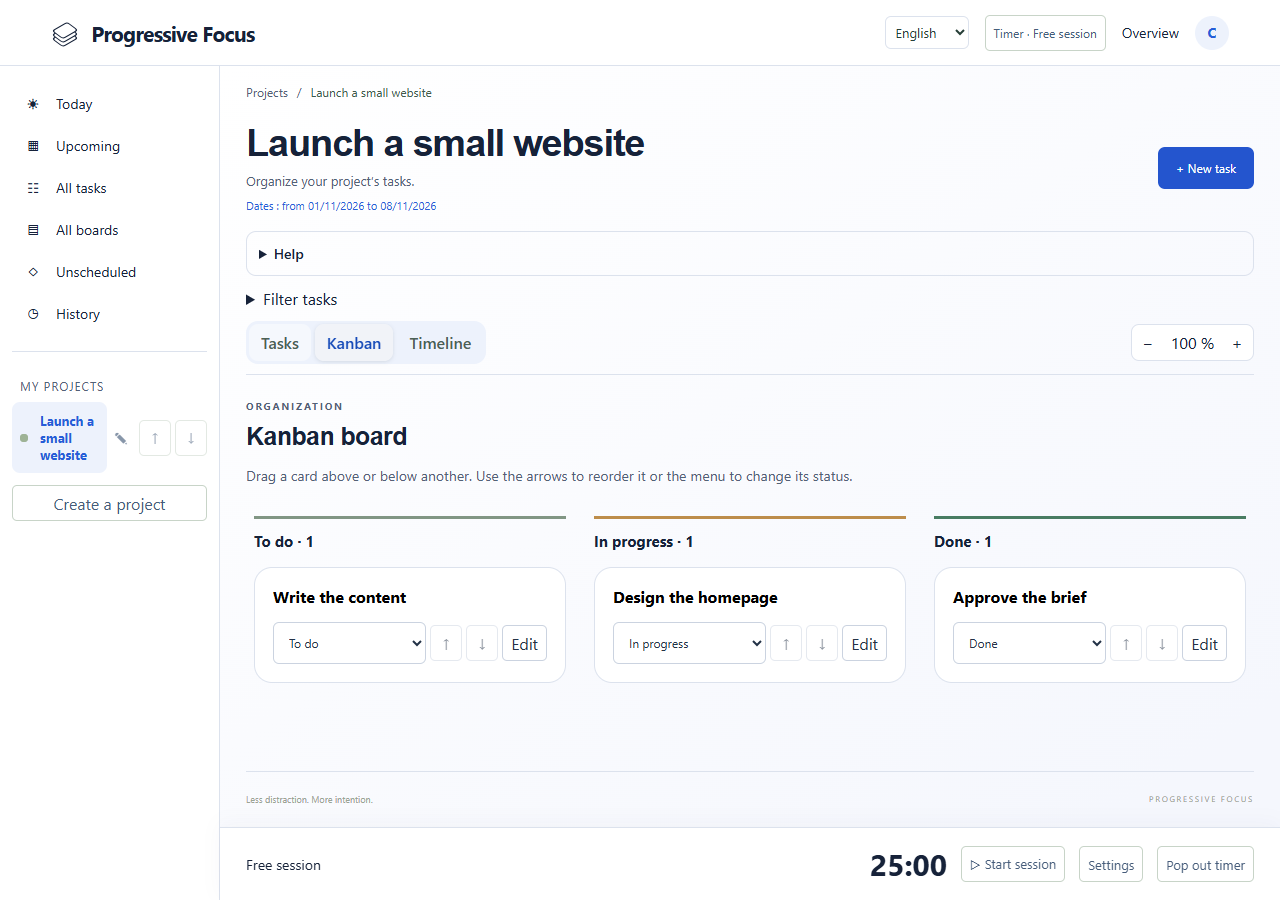
Choose a project and open Kanban. Drag a card between columns or before/after another card. The status selector and arrow buttons also support keyboard and mobile use.
Using the timeline
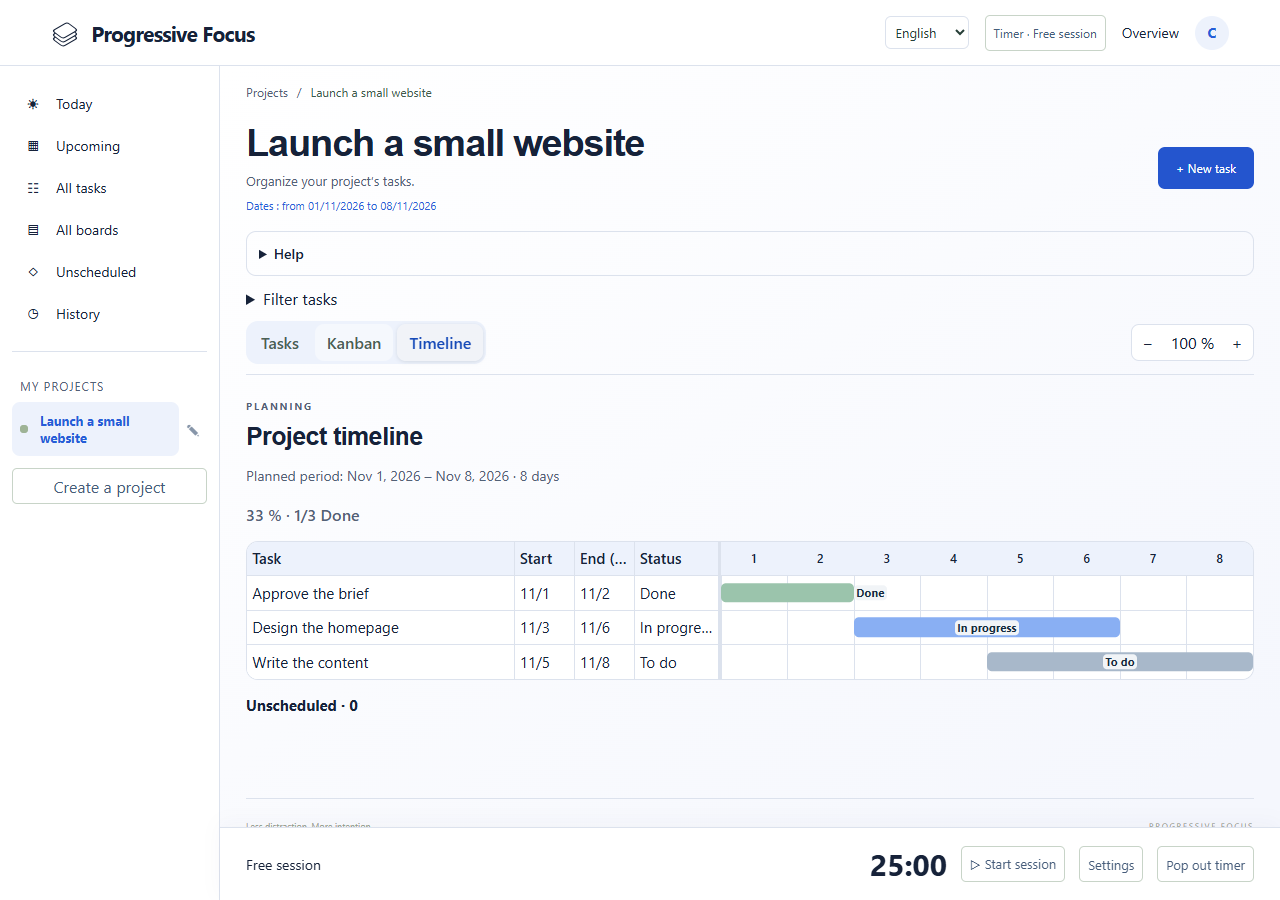
In Timeline, click a task row to edit its start and end. For an undated task, use Schedule. The end cannot precede the start. Zoom adjusts density separately on desktop and mobile.
Sounds and notifications
Sign into the same account on your phone and enable mobile alerts under Sound and notifications. The server needs Web Push keys and HTTPS. On a compatible iPhone version, use a web app added to the Home Screen. Test delivery on your device.
Installing on mobile
In a compatible browser, choose Install or Add to Home Screen. Launching opens /app. A network connection is still required.
Settings
In Settings, choose language, theme and Kanban card colors (uniform or by status), then save. Preferences belong to your account.
User administration
Only an administrator can open Users, create accounts or delete another account. Deletion removes its active workspace, authentication sessions, push subscriptions and files. Do not create an administrator account on a server you do not own.